How to Quit Deadlock: Uninstall It From Your Steam Library
If you’ve decided you’re done with Deadlock and want it off your system for good, the process is straightforward. The method below is based on a community-written Steam guide and the standard Steam library interface — it is player-reported, not an official Valve document, so treat the exact wording of menu labels as approximate.
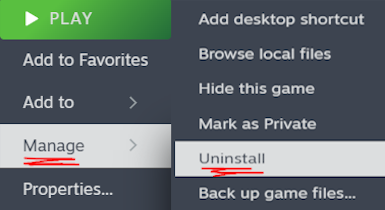
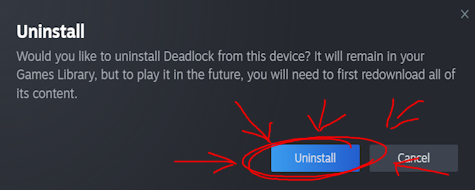
The headline steps are simple: open Steam, find Deadlock in your library, open the Manage menu, and hit Uninstall. The community guide that this article is based on keeps it even shorter — “Go to manage > uninstall, then press the uninstall button.” Everything else is confirmation and cleanup.
Open Steam and find Deadlock in your Library
Start by launching the Steam client and heading to your Library. Deadlock should appear in your game list on the left-hand side once it has been added to your account. If your library is long, use the search bar at the top of the library, or filter to only show Installed games so Deadlock is easier to spot.
Open the Manage menu
Once Deadlock is selected, open its Manage menu. You can reach this by clicking the gear/Manage icon on the game’s library page, or by right-clicking the game in the sidebar. This is the same menu Steam uses for every title, and it’s where all install, uninstall and property options live.
Click Uninstall and confirm
In the Manage menu, choose Uninstall. Steam will show a confirmation prompt; accept it, and the client will begin removing the game’s files from your drive. Depending on how large your Deadlock install is and how fast your storage is, this usually completes in seconds to a couple of minutes. When it’s done, Deadlock will no longer appear in your installed list — but it stays in your library, so you can reinstall it later without re-buying anything (Deadlock is free to play).
Try the community’s “life after Deadlock” checklist
The original community guide doesn’t stop at uninstalling — it adds a tongue-in-cheek checklist of things to do once the game is gone. Taken at face value it’s a joke, but plenty of players treat it as a genuine “touch some grass” reminder:
- Go outside
- Breathe fresh air
- Touch grass
- Go to the gym
- Get a job
- Take a shower
- Talk to people
Whether you follow all, some, or none of these is up to you — the point the guide is making is that stepping away from a competitive MOBA frees up a lot of time, and it jokingly suggests filling it with real-world activities instead.
What if you want to come back later?
Uninstalling is not permanent. Because Deadlock lives in your Steam library as a free-to-play title, you can reinstall it at any time from the same Manage menu by choosing Install. Your account progress isn’t stored locally on the game files in a way that vanishes with the install — but for anything account-related, always confirm the current behavior in-game or through official Valve channels, since this part isn’t covered by the community source.
A note on the source
This guide is adapted from a community Steam guide that is deliberately comedic, and its comment section is full of jokes — including the running gag that Valve will “send Vindictas” after you, calls to “quit now,” and generally over-the-top reactions. Treat the tone as entertainment, but the actual uninstall method (Manage → Uninstall → confirm) matches how Steam handles every game, so the core instructions are reliable even if the surrounding commentary isn’t meant to be taken seriously.

Quick tips before you hit Uninstall
- You don’t need to delete your account — removing the game files is enough, and it’s fully reversible.
- Check for other installs — if you have Deadlock on multiple PCs or drives, you’ll need to uninstall it separately on each one.
- Free up more space — after uninstalling, you can also clear leftover config folders manually if you want a truly clean slate, though this isn’t required by the guide.
- Unconfirmed details — menu wording (“Manage”, “Uninstall”) can shift slightly with Steam client updates; if you can’t find an option, it will still be in the right-click context menu for the game.